
介紹如何在 Linux 中以 curl 撰寫指令稿下載 Google 雲端硬碟上面的檔案。
取得檔案共用連結
透過 Google 雲端硬碟分享的檔案,都會有一個檔案的共用連結,使用者可透過這個連結來下載檔案。以下是 Medical Segmentation Decathlon 透過 Google 雲端硬碟所分享的檔案。
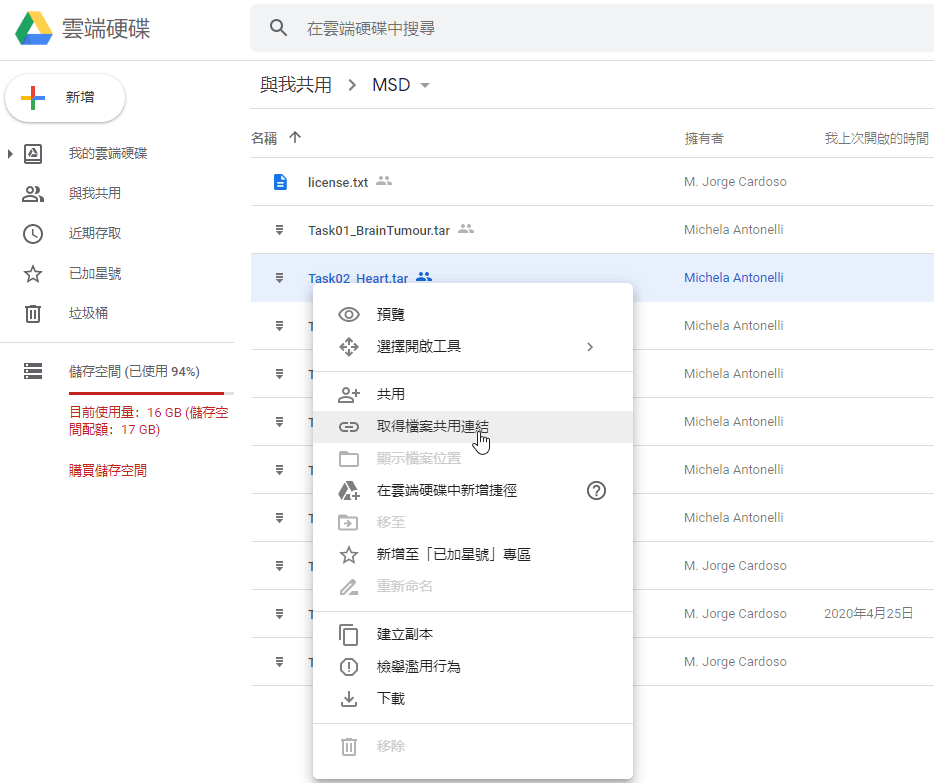
不過這個連結網址只是一個下載網頁,不是原始檔案的位址,若直接使用 curl 或 wget 指令來下載該網址,只會取得一張下載網頁,無法下載檔案。
指令下載 Google 雲端硬碟檔案
Google 雲端硬碟的檔案共用連結中會包含一個檔案的 ID,例如:
https://drive.google.com/open?id=1wEB2I6S6tQBVEPxir8cA5kFB8gTQadYY
這個共用連結中的檔案 ID 就是 1wEB2I6S6tQBVEPxir8cA5kFB8gTQadYY,取得此 ID 之後即可使用以下 bash 指令稿來下載檔案。
#!/bin/sh

# 檔案 ID
file_id=$1

# 輸出檔案名稱
file_name=$2

# 暫存檔案名稱
cookies_file=/tmp/cookies.googleDrive.$$

# 取得下載連結
download_link=$(curl -c $cookies_file
  "https://drive.google.com/uc?export=download&id=$file_id" |
  grep -Po 'uc-download-link" [^>]* href="K[^"]*' |
  sed 's/&/&/g')

# 下載檔案
curl -L -b $cookies_file -o $file_name "https://drive.google.com$download_link"

# 刪除暫存檔
rm -f $cookies_file
將上面這段 shell 指令稿儲存為 gdrive_download.sh 並設定執行權限之後,即可用它來下載 Google 雲端硬碟的檔案,下載時要指定檔案 ID 與儲存的檔案名稱:
# 設定指令稿執行權限
chmod +x gdrive_download.sh

# 下載 Google 雲端硬碟檔案
./gdrive_download.sh 1wEB2I6S6tQBVEPxir8cA5kFB8gTQadYY Task09_Spleen.tar
這樣就會檔案下載之後,儲存為 Task09_Spleen.tar。